Home > Factory Productivity and Scheduling > Advanced Topics > Phone App > Android App > Using the Android App > To Log In to Empower
To Log In to Empower
To use Empower's Android App, User Tracking needs to be enabled - for more information see Location Tracking.
To log on to Empower, in the first screen, enter the Username and Password your Empower Administrator has given you, as highlighted below. Then tap the green Log In button.
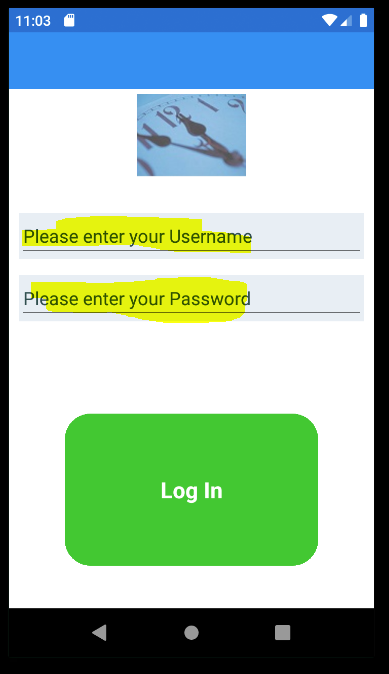
This will log your phone into Empower - i.e. connect it to Empower.
Unless you Log out of the Empower Android app you will not need to do this again.
Empower recommends different User Names for each device, eg SamsPhone, ElisPhone etc.
If multiple Employees will use the same device, Empower recommends using a single Username for all Employees who will use that device eg InstallersPhone, OnsitePhone, etc. etc.
Once Logged in, the Welcome to Empower screen will display.
See also
|