Home > Factory Productivity and Scheduling > Advanced Topics > Phone App > Android App > Using the Android App > To Go To and From Lunch
To Go To and From Lunch
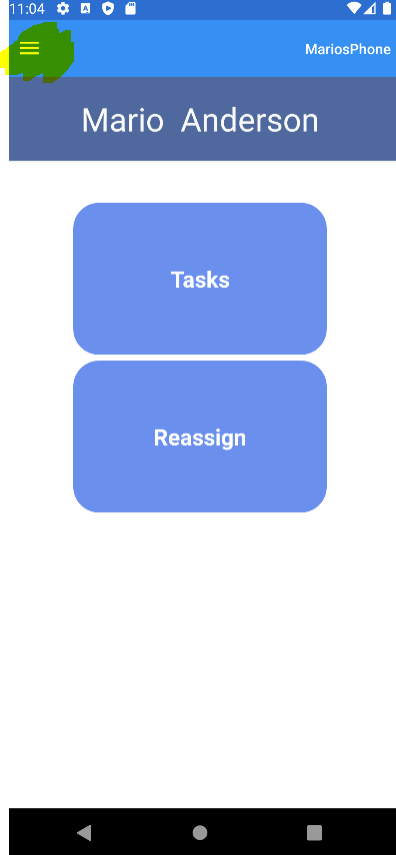
From the Clock In and Out Screen you can go to and from lunch by tapping the three horizontal bars on the top left hand side of the screen (see highlighted below)
Tapping these displays a menu as follows
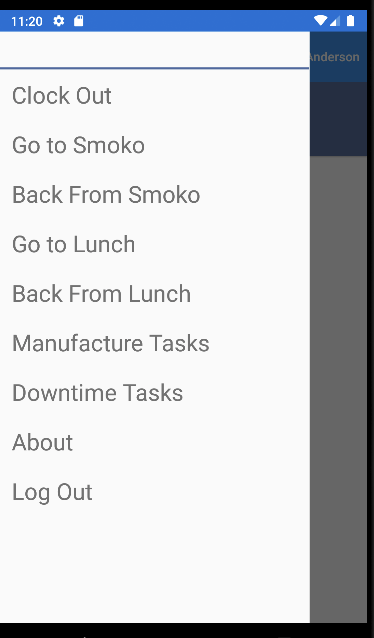
If you tap on Go To Lunch the following screen is displayed
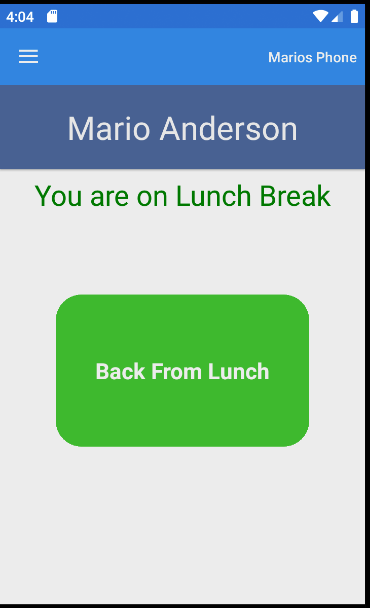
This will clock you out of Empower and automatically place the Task you were working on On Hold.
Tap the green Back From Lunch button when you are back from lunch.
This will clock you back into Empower and start up the Task you were working on before lunch.
See also
|