Home > Materials > Purchase Orders > Before Using Purchase Orders
Before Using Purchase Orders
Before using Purchase Orders you should have
1. Set up your Materials - see Setting Up Materials
2. Set up your Suppliers - see Setting Up Suppliers.
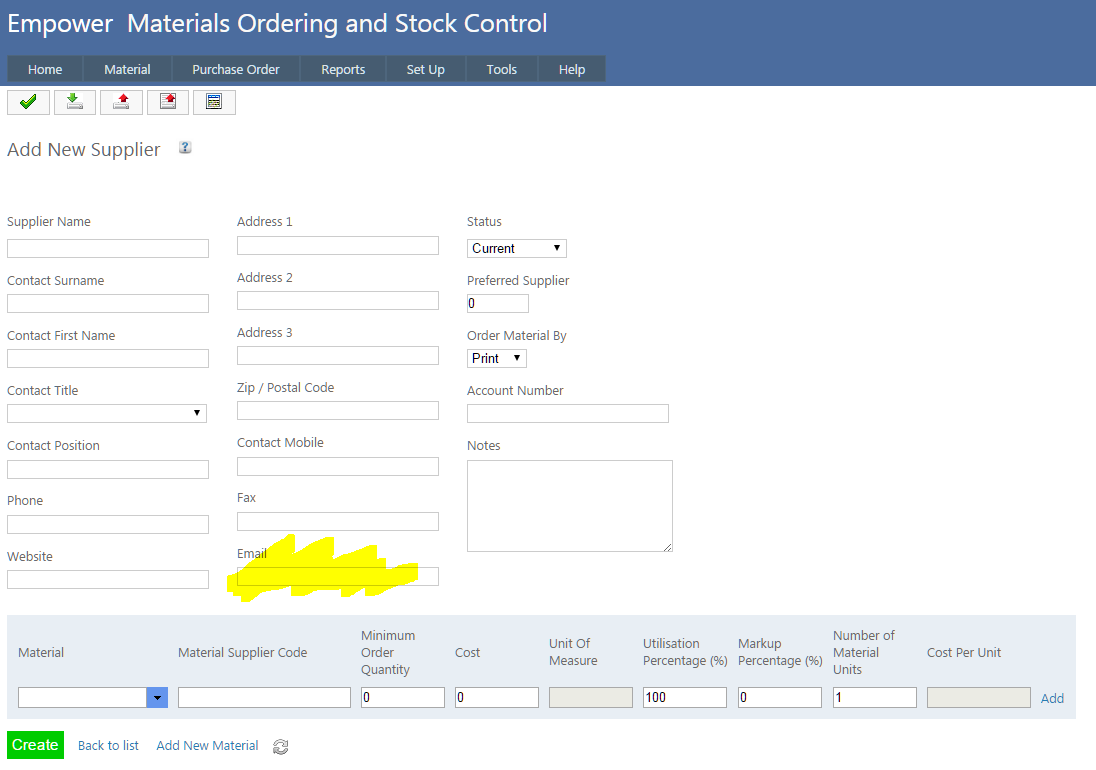
In the Add New or Edit Supplier page, if you have Order Material By set to email (see highlighted below) ensure an email is entered.
3. Go to Tools > Settings.
You should see a page similar to

Enter the
- Contact Information - the address details are those that will appear on the Purchase Order. Also enter an email address to copy the Purchase Orders to if you wish. Note that the email address you have specified in your User Login will also be copied in on Purchase Order emails. For more information on this, see Adding a User
- If you wish to have your company logo display on the Purchase Order enter the file path of the logo. This can be any common graphic eg jpg, jpeg, png, gif etc
- The name and rate of any goods and service tax (eg GST or VAT etc)
- If you want the Purchase Order numbers to be prefixed by some characters (eg POR etc) enter the prefix in the Purchase Orders Prefix field
- If you do not wish Purchase Orders to start at number 1, enter the starting number in the Purchase Order numbers starting with field. So for example if the Purchase Orders Prefix was POR and the Purchase Order numbers starting with field 10000 then the first Purchase Order raised would be POR10001.
4. To add a company logo to Purchase Orders, see Company Logo
See also
|