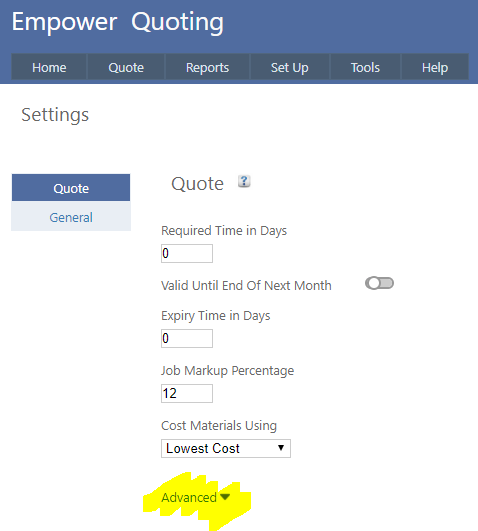
1. From the Main Quoting menu select Tools > Settings
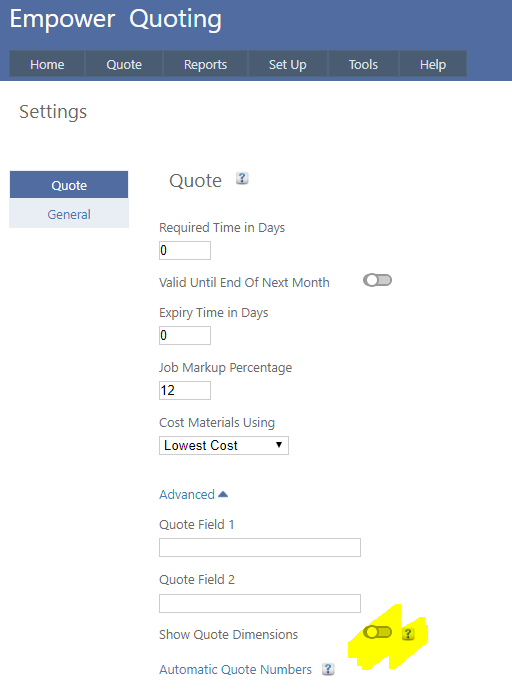
2. Click on the Advanced button (see highlighted above). You should see something similar to
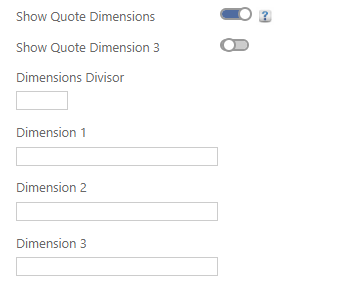
3. Turn on Show Quote Dimensions - see highlighted above. You should now see something similar to
Taking each of these fields in turn
Show Quote Dimension 3
Turning this on will display the 3rd Dimension - if you are unsure of this, Empower recommends leaving this switched off.
Dimensions Divisor
This is a value to compensate for the numbers being input.
For example - if your Dimensions are say Width and Length and your Material is say $10 per square meter
And you put in 1500mm width and 1000mm length then the dimension divisor should be 1000 so that the input numbers are divided by 1000 to get to the correct value.
Dimensions 1, 2, and 3
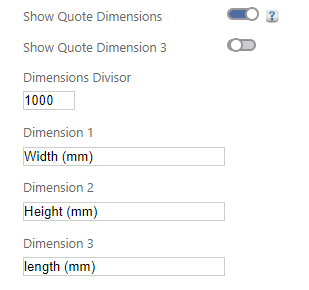
These are the headings for the Dimensions - if you are unsure what to enter, Empower recommends entering Width (mm) in Dimension 1 and Length (mm) in Dimension 2.
If you have followed Empower's recommendations you should see a page similar to