Home > Factory Productivity and Scheduling > Advanced Topics > Sub Factories > Introduction to Sub Factories
Introduction to Sub Factories
Empower Sub Factories are an option that allows you to
- filter out or see only selected Employees for part of your organisation
You may think of a Sub Factory as a separate Factory in a separate physical location, or a department, or a group of Employees.
A simple example may clarify how Sub Factories work.
Imagine in your factory if you have two areas - the wood area and the metal area.
Each area has a supervisor who only wants to see the Employees working in their area. Which in Empower Time Track is called a Sub Factory.
Empower allows for an Employee to be tagged to a Sub Factory.
To do this
2. Add a Subfactory - see Adding or Editing a Sub Factory
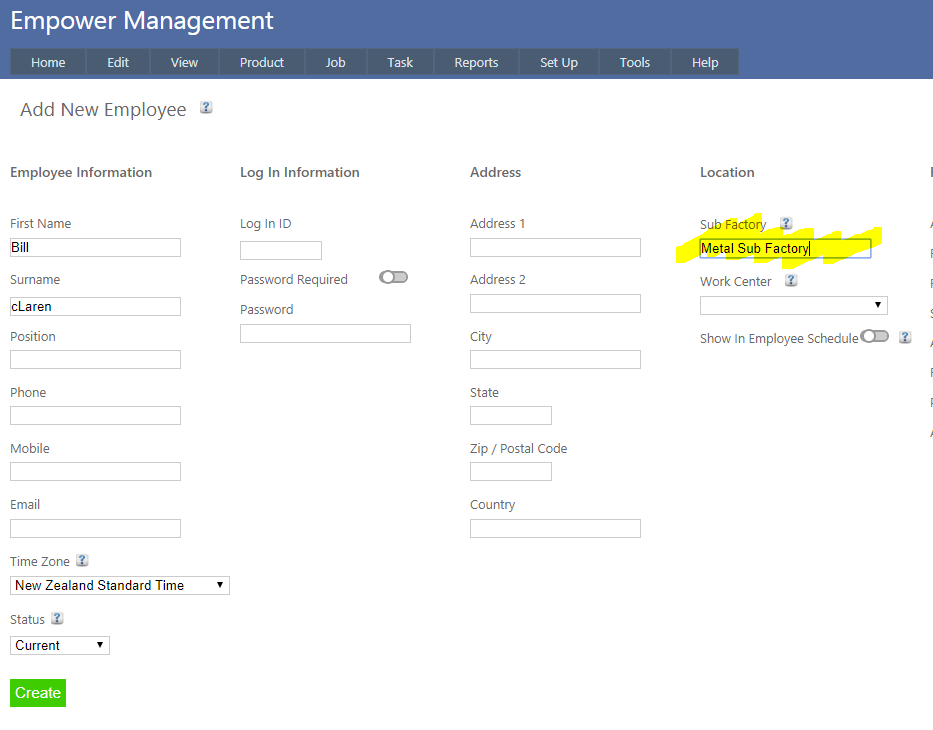
2. From the Employee page (see Setting Up Employees) enter in a Sub Factory name as highlighted below.
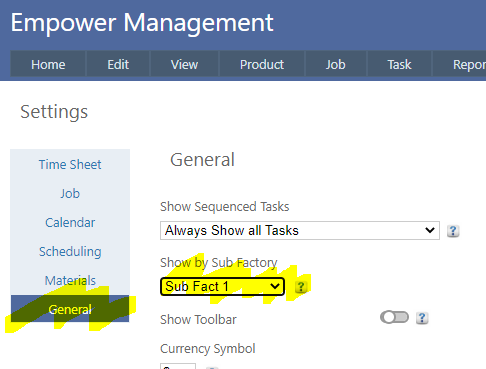
3. From the Main Management Menu select Tools > Settings and then the General tab (highlighted below), click on the Show By Sub Factory drop down box.
- Task > Start and End page
See also
|