Home > Factory Productivity and Scheduling > Advanced Topics > Advanced Scheduling Topics > Forward and Backward Scheduling > Using Backwards Scheduling
Using Backwards Scheduling
Using Forward and Backwards Scheduling with a Backwards Scheduling set as your default scheduling Type is very straight forward - simply go through the following five steps.
1. Ensure that you have set up Backward Scheduling as your default Schedule Type - see Introduction to Backward Scheduling
2. Make sure you have at least one Backward Schedule - see Add New Backward Schedule. This means that all relevant Jobs will be scheduled using Backwards Scheduling.
3. Ensure that you have set up Forward and Backward Scheduling - see Set Up Forward / Backward Scheduling
4. Select the Job you wish to over ride the Backward Schedule - i.e. the Job to be scheduled using Forward Scheduling rather than Backward.
To do this, from the Main Management Menu select Job > Edit. You should see a page similar to
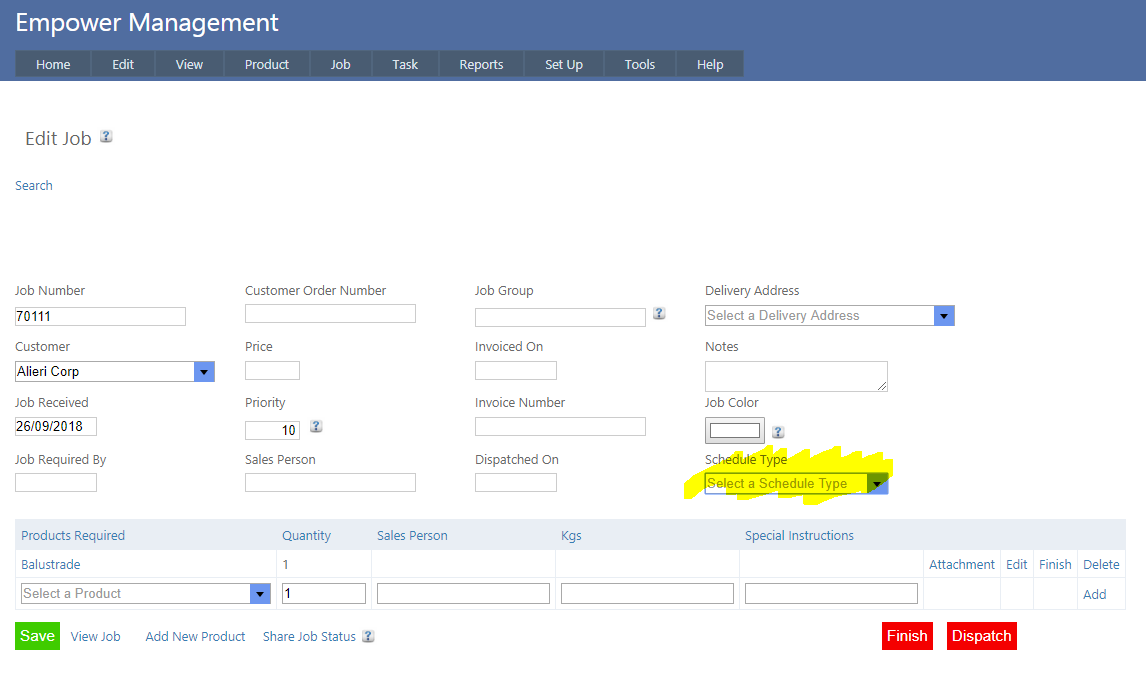
5. Select Forward from the Schedule Type drop down selection (highlighted above).
This Job will be scheduled using Forward Scheduling, and all other relevant Jobs will be scheduled using the default Backwards Schedule.
Note that if there is no value in the Schedule Type (i.e. it is empty) the default Schedule Type will be used.
See also
|