Home > Materials > Advanced Topics > Purchase Orders > Create POs From Microvellum > Upload a .sdf file and Create POs
Upload a .sdf file and Create POs
Once you have Downloaded a .sdf file from Microvellum the final step is to Upload the file into Empower and Create the Purchase Orders for the required Material.
To do this
1. From The Empower Materials Ordering and Stock Control home page select Create Purchase Orders From Microvellum.
You should see a page similar to
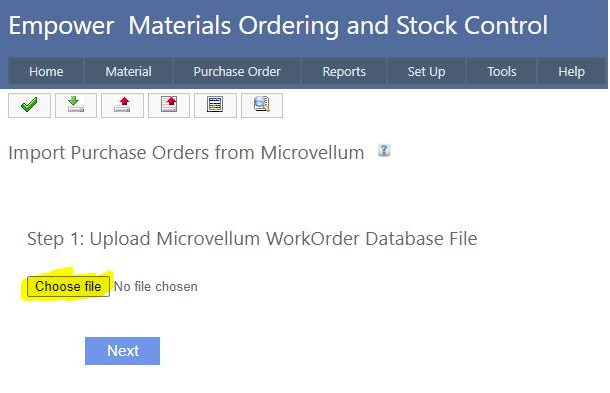
Click on Choose file (highlighted above) and navigate to the .sdf file you saved earlier.
Then click Next (see highlighted below).
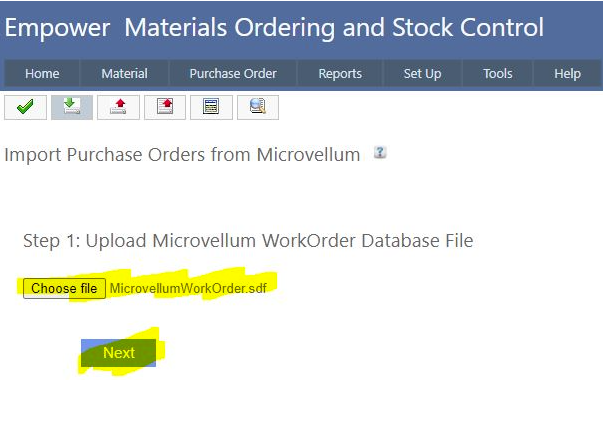
2. After clicking Next you should see a page listing the required board (sheets) for the Job - as an example see below.
If the Materials and Suppliers do not exist in Empower you will need to enter them first.
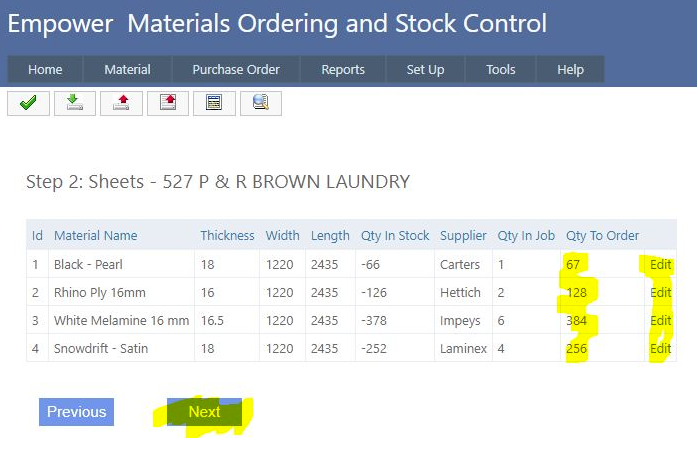
Each line has the thickness, width and length, the quantity in stock, the Supplier and the Quantity To Order.
Selecting Edit on the appropriate line will allow the Quantity To Order to be altered.
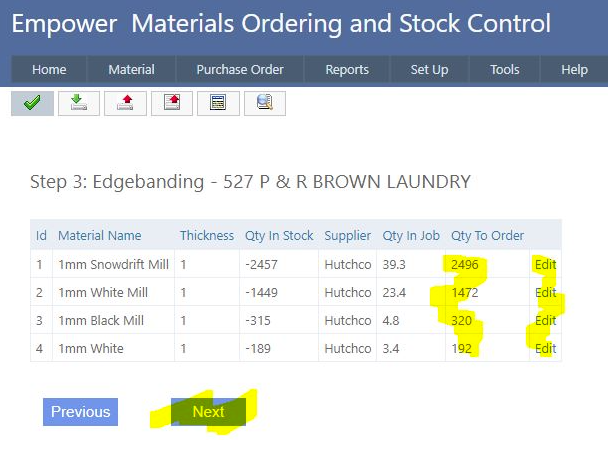
3. After clicking Next you should see a page listing the required Edgebanding tape for the Job - as an example see below
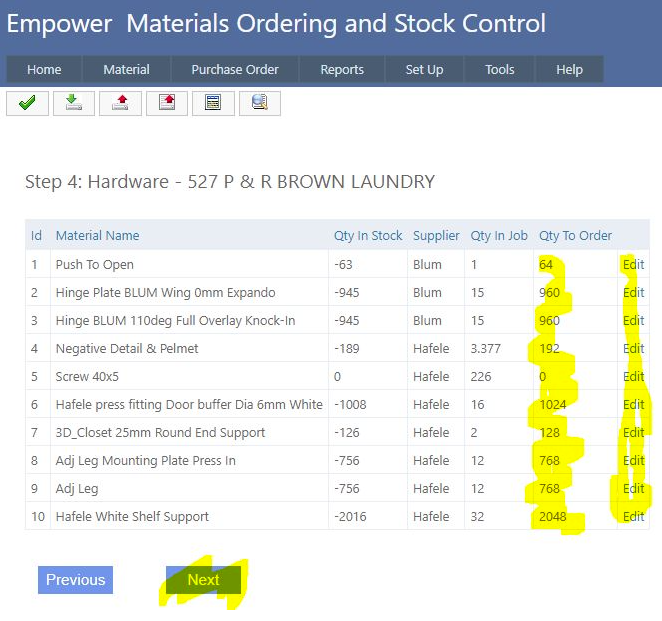
4. After clicking Next you should see a page listing the required Hardware for the Job - as an example see below
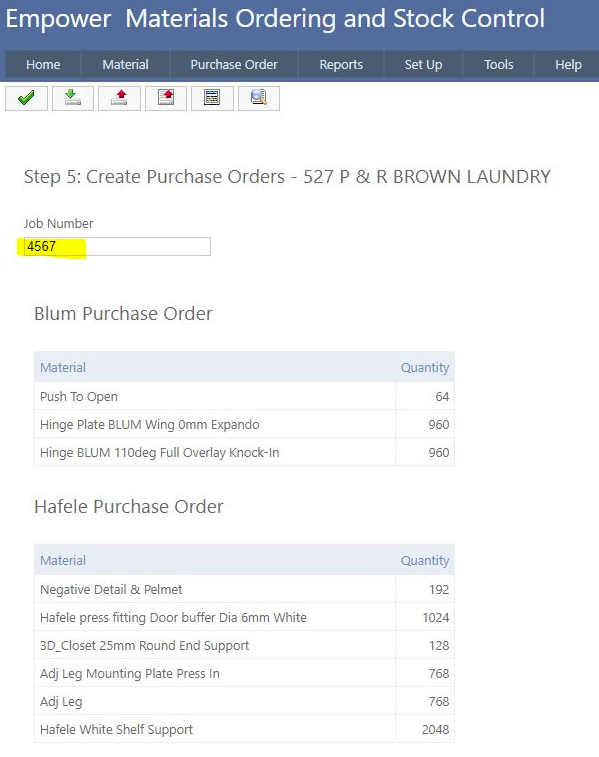
4. After clicking Next you should see a page listing the various Purchase Orders required for the Job - as an example see below
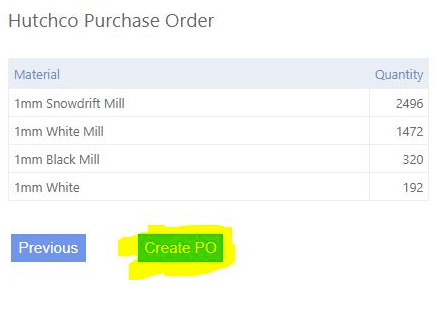
At the bottom of the page click Create PO to create the various Purchase Orders (see highlighted below)
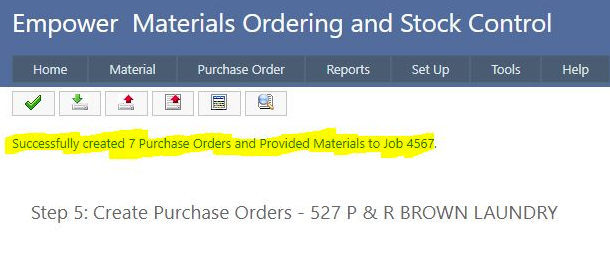
You will see a confirmation message of the Purchase Orders that have been created (see below).
See also
|