Scheduled Tasks and Split Tasks can be moved from one day to another in three ways. Note that for all three ways, you do not need to update the schedule for the Schedule to be updated with these moves.
1. From the Main Menu select one of the Schedules - Select View > Scheduling > Schedule or View > Scheduling > Employee Schedule or View > Scheduling > Process Schedule. Tasks can be simply moved by dragging and dropping from one day to the next.
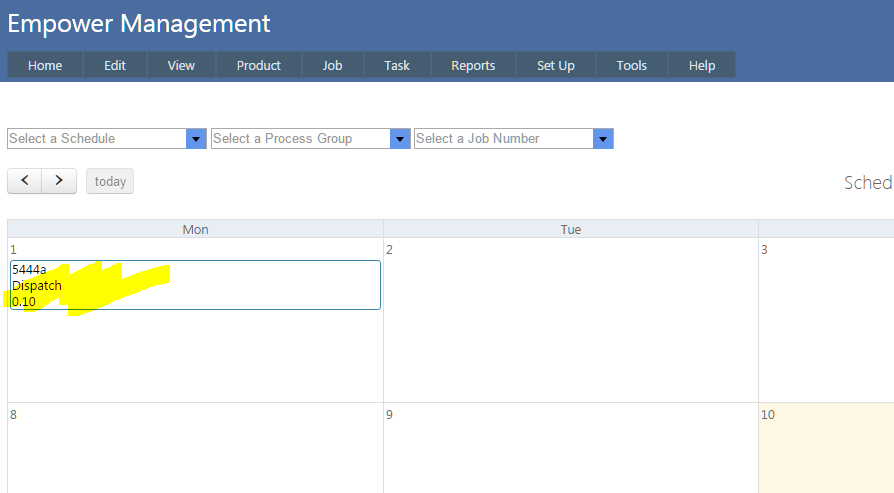
For example click on the Task to be moved (see highlighted below)
And drag and drop it to the required day (see highlighted below)
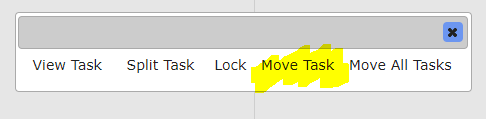
2. The second way is to click on the Task to be moved. You should see something similar to
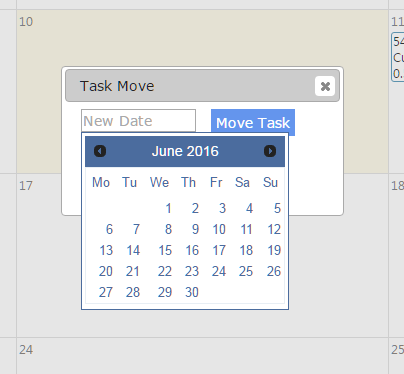
After clicking on Move Task (see highlighted above), select a date to move to (see below)
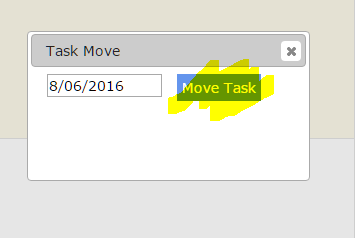
Finally click on Move Task to move it to the new date (see highlighted below)
3. The third way is to move all Tasks scheduled on a particular day from that day to another day.
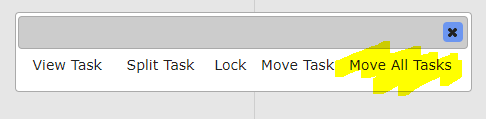
To do this, first click on any Task scheduled on the day you want to move from. You should see something similar to
Select Move All Tasks, and click on that (see highlighted below)
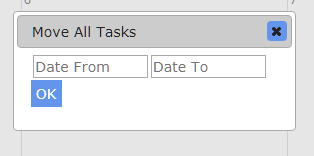
You should see something similar to
Select the from and to dates you want to move all Tasks that have been scheduled from to.
And finally click the OK button.
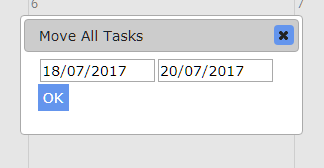
For example, in the example below clicking the OK button will move all Tasks that were Scheduled on 18/7/2017 to 20/07/2017.