Home > Factory Productivity and Scheduling > Managing Leave > Adding or Editing Leave
Adding or Editing Leave
There are two ways to add Employee leave.
1. The first way is using a graphical calendar page where leave can quickly and simply be added or edited by clicking on a day, or highlighting a period and adding or editing leave for an Employee.
Drag and drop (i.e. moving from one time or day to another time or day), resizing, deleting adding and copying of leave is all available on these pages. Leave can be viewed monthly, weekly or daily.
Weekends can be displayed or hidden in these pages - for more information see Hide Weekends.
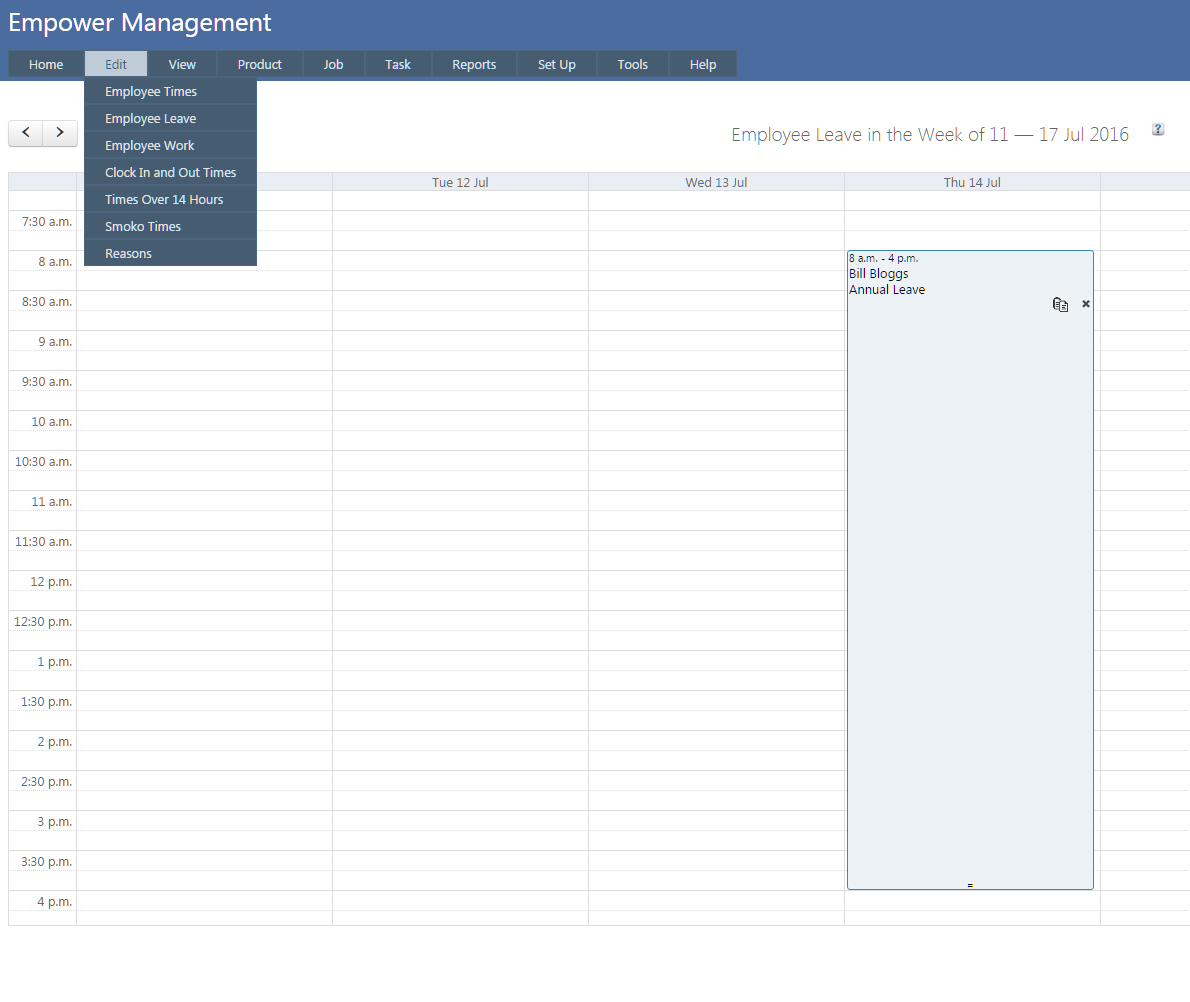
To use these pages, from the Management Main Menu go to Edit > Employee Leave.
You should see a page similar to
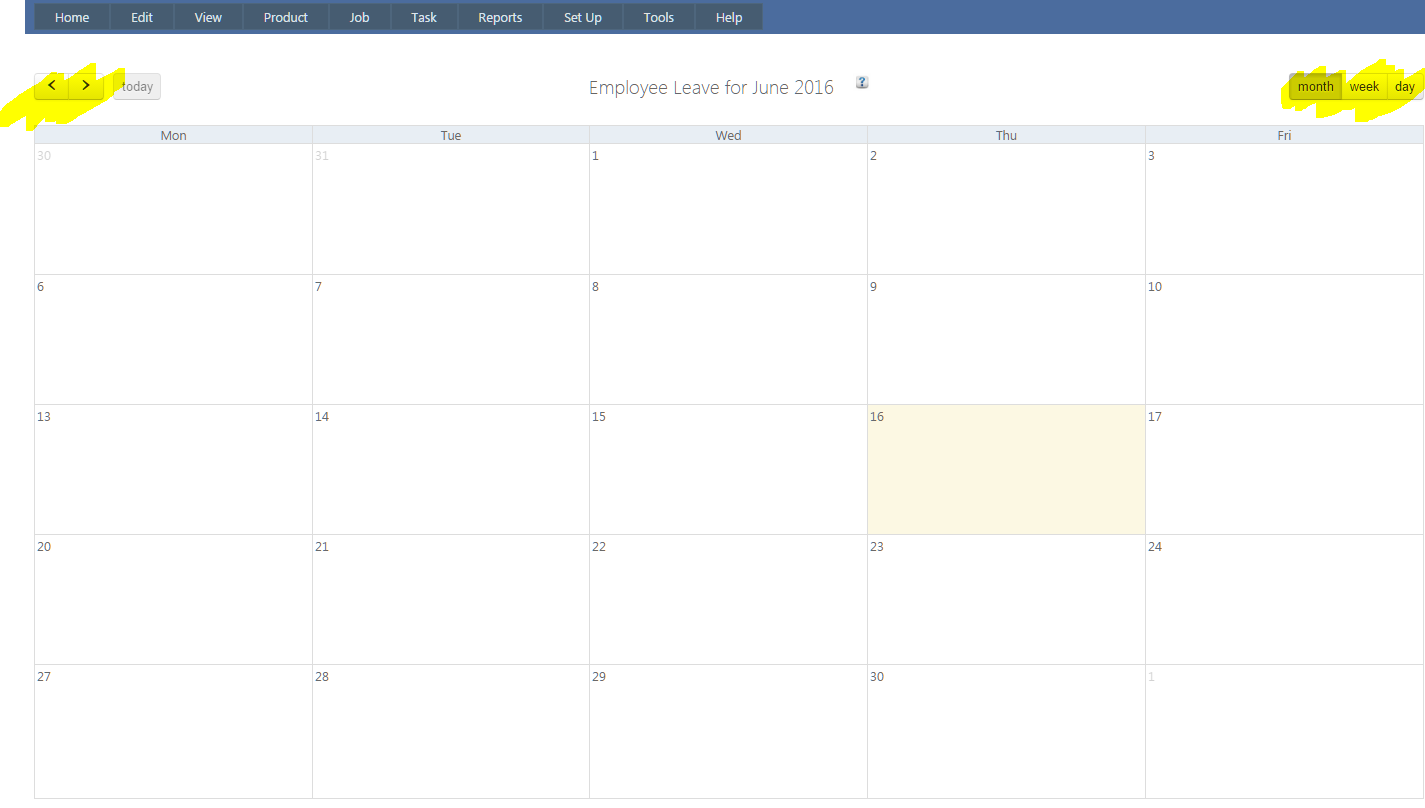
Any leave in Empower Time Track will be visible on this page. To view a week or a day click on the week or day buttons (highlighted above). To Navigate from day to day or week to week or month to month use the buttons at the top left hand side of the page (see also highlighted above).
To add leave, simply either click on a day and add a leave type to the times you select day for a particular Employee
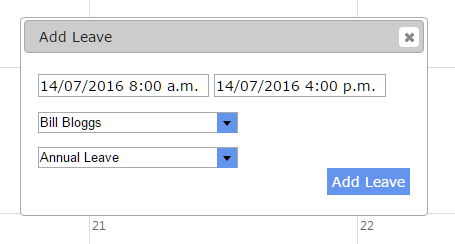
After clicking the Add Leave button this time will be visible in the page (see below)
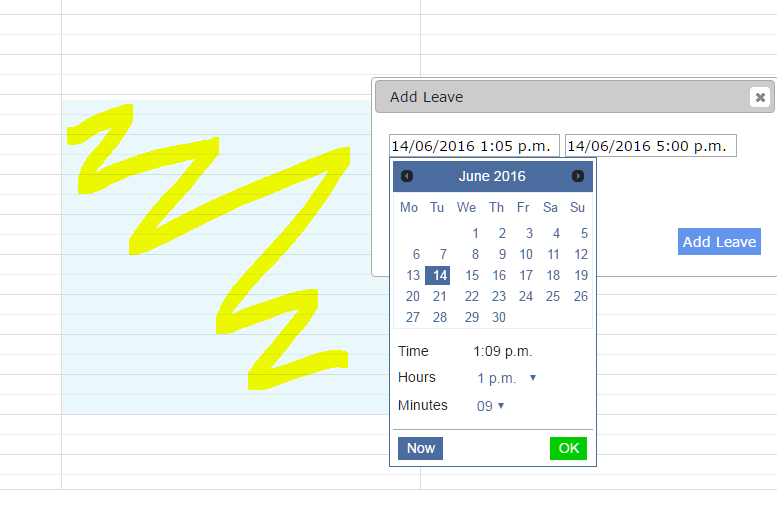
Alternatively in the Week and Day views, times can be highlighted and added (see the yellow highlighted part below)
Employee leave times an be dragged from one time to another, for example drag from the Thursday
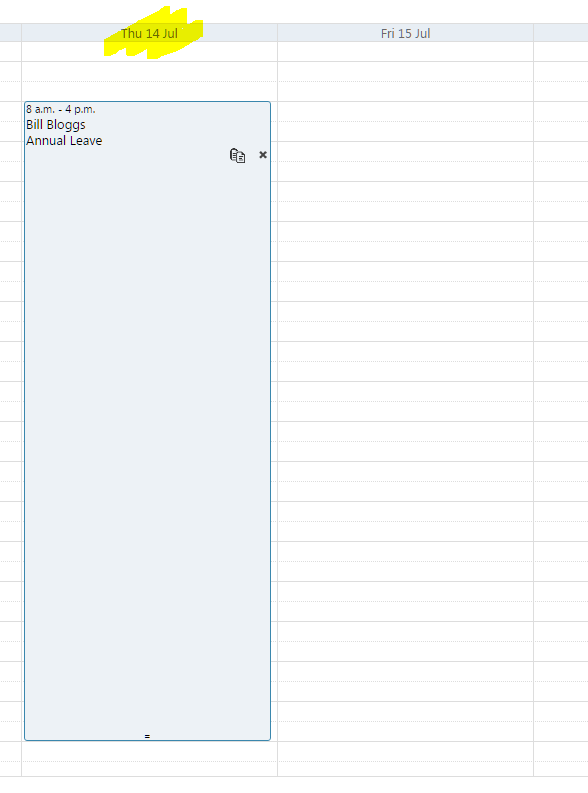
To Friday (see below)
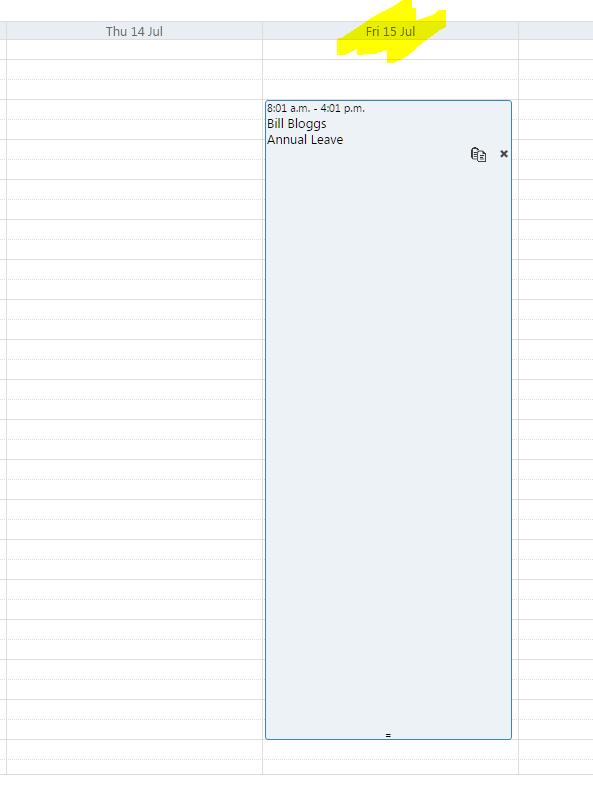
Leave Times can quickly and easily be changed by dragging the bottom of the Leave Time (see below)
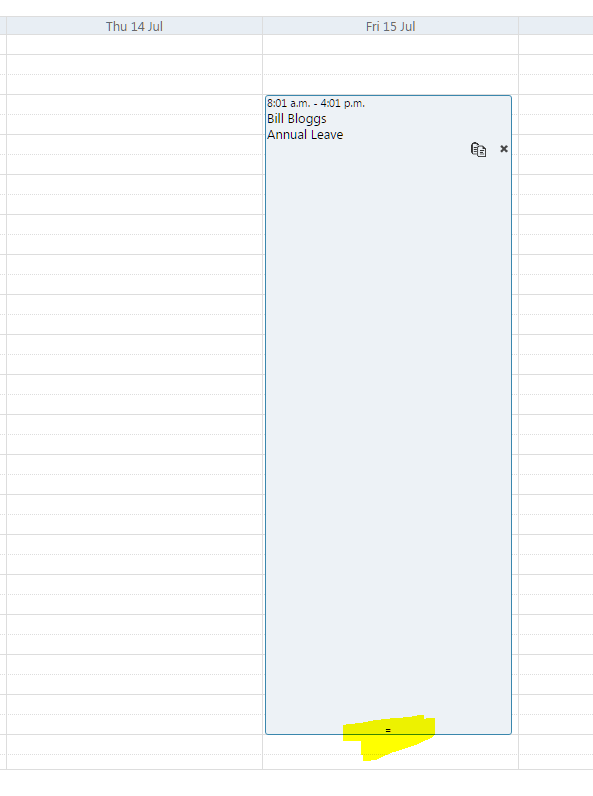
Drag the highlighted bottom of the Leave Time to change the Leave Time (see below)
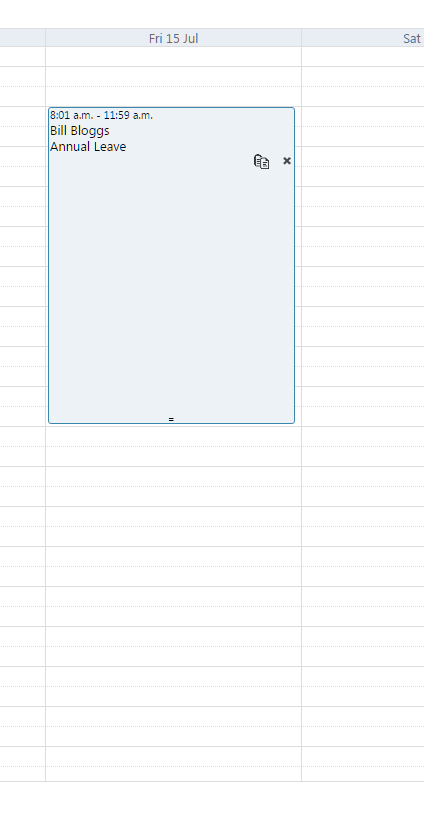
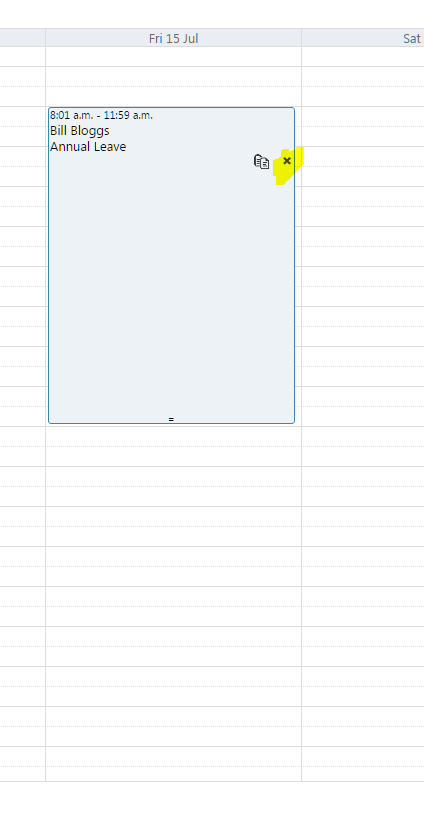
To delete a Leave Time click on the x to the right of the Leave Time (see highlighted below)
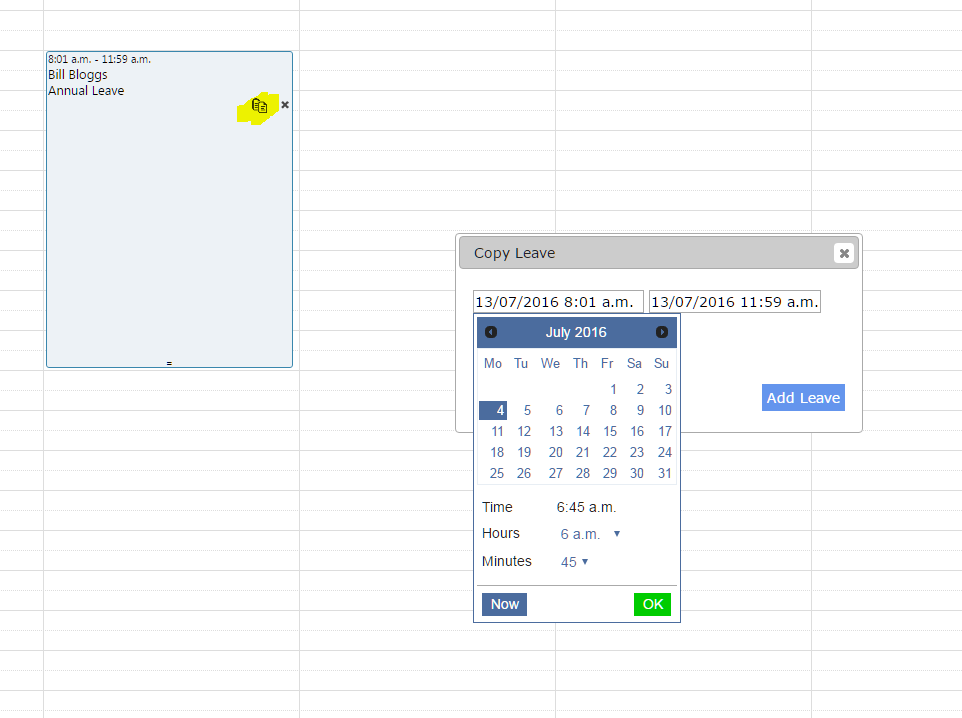
To copy a Leave Time click on the copy icon to the right of the Leave Time (see highlighted below)
2. The second way of adding and editing Employee Leave is to use the Edit Clock In and Out Times page. To do this, from the Management Main Menu go to Edit > Clock In and Out Times.
You should see a page similar to
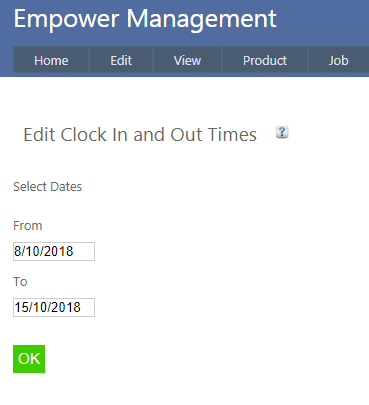
Click the OK button.
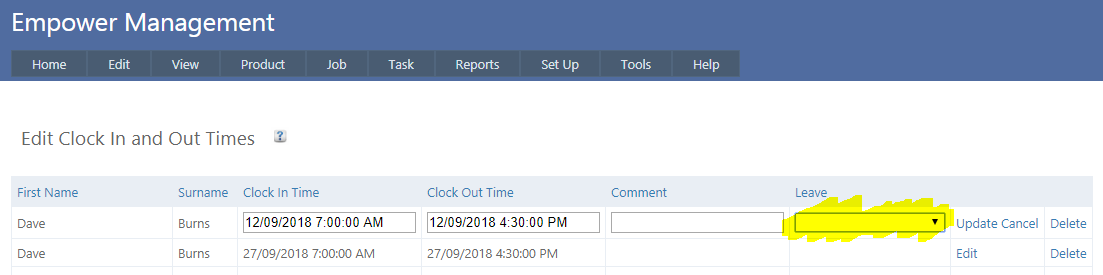
Select Edit next to the Employee and the day and enter the Leave type from the drop down list (see highlighted below)
It is also possible to
- Add multiple days to either one or more Employees, and
For more information see Entering Bulk Leave
See also
|